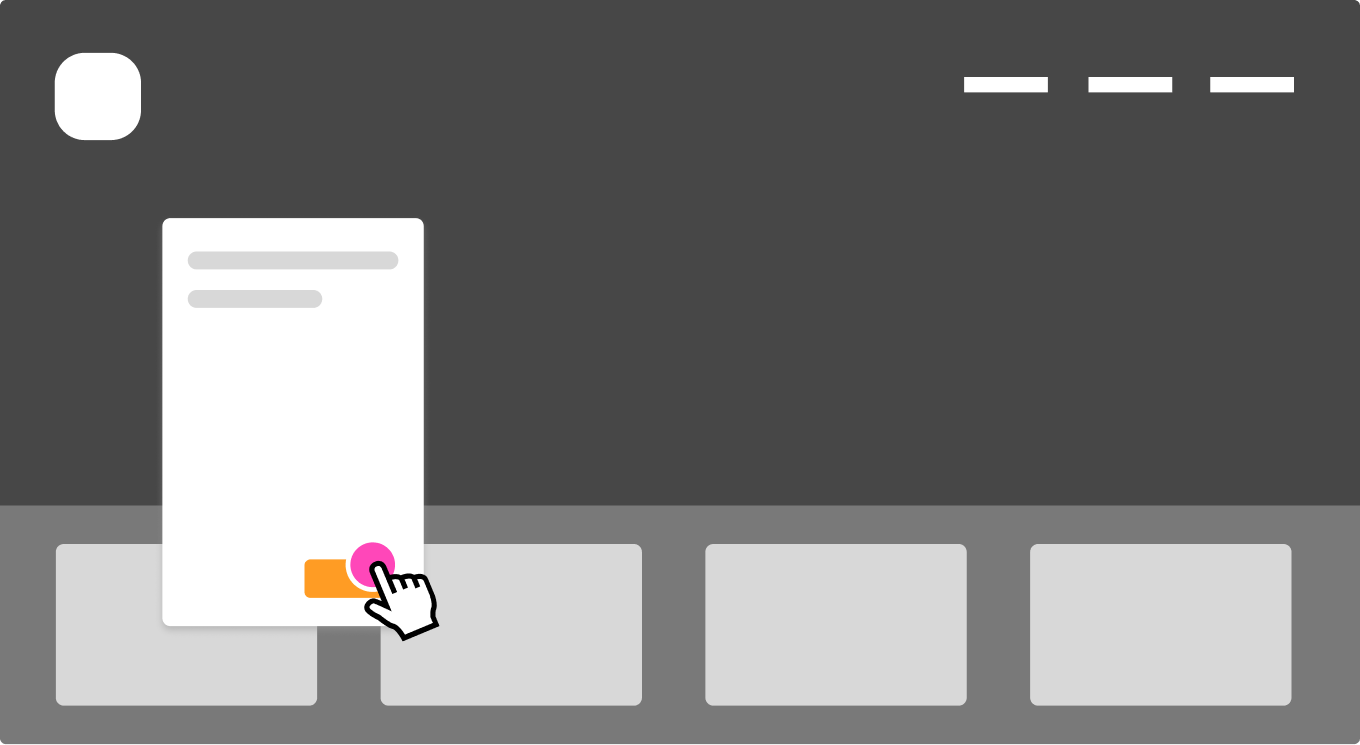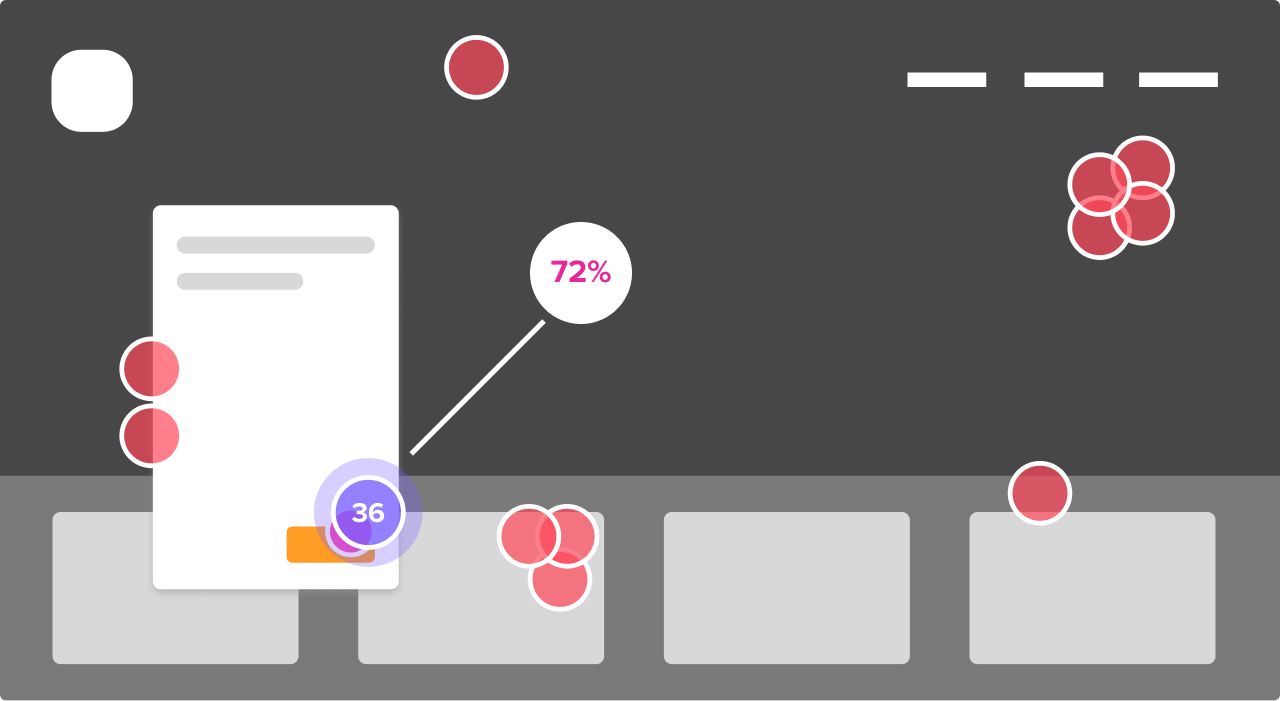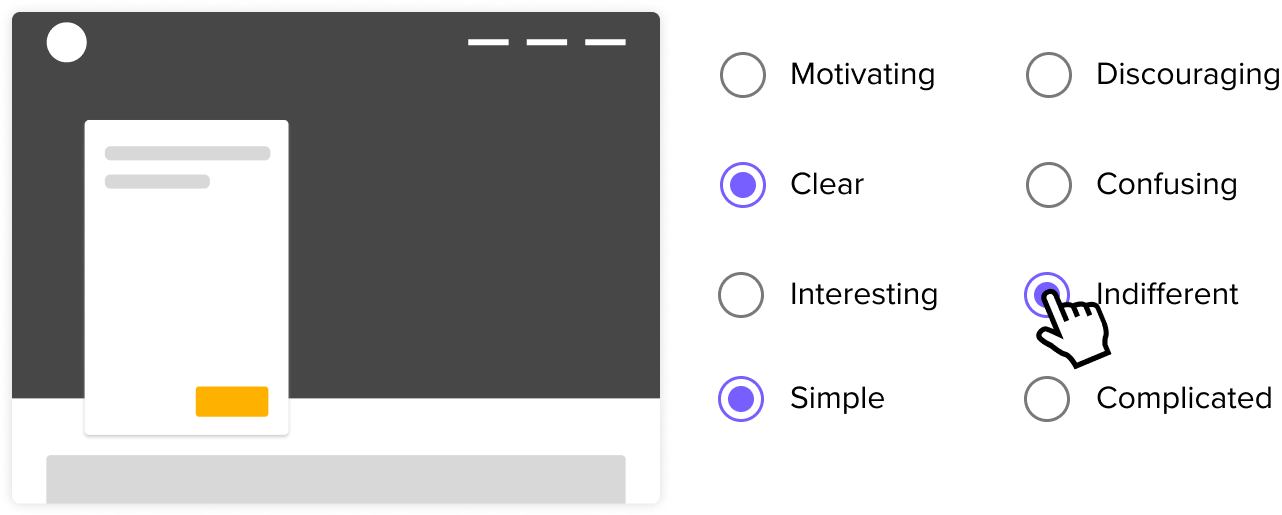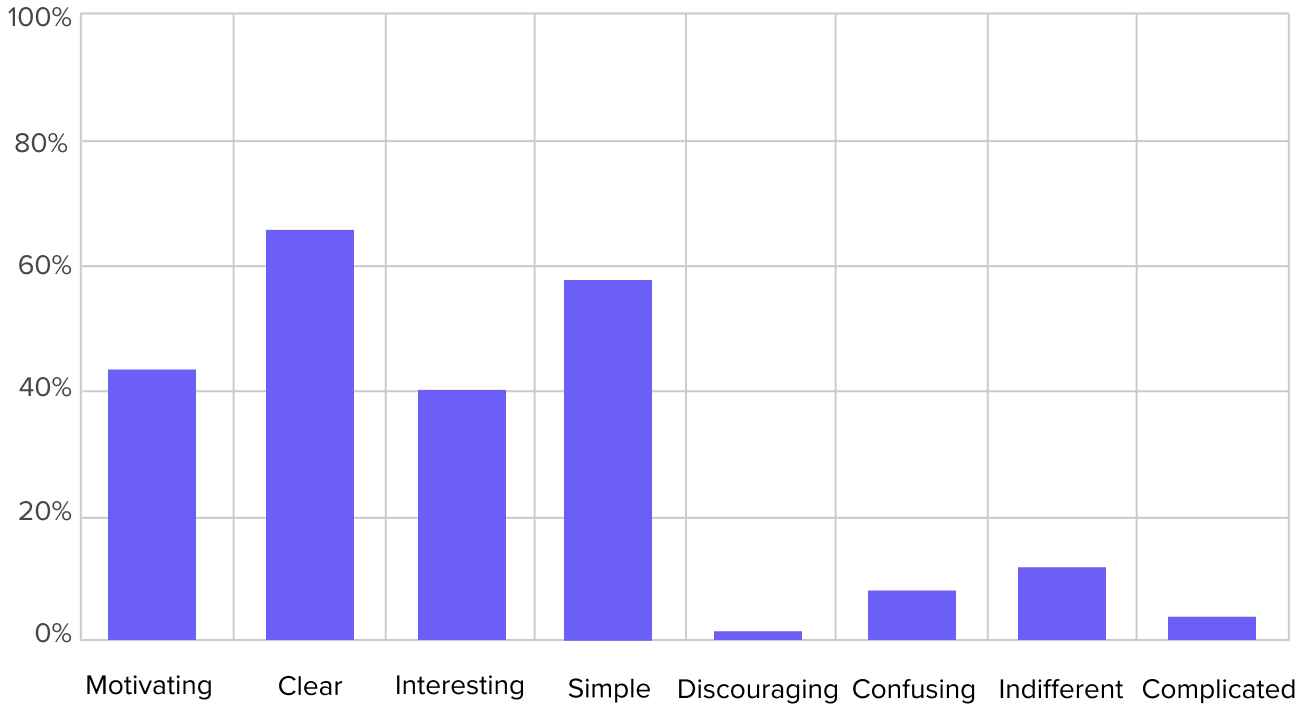









We strive to make it as easy as possible for our users to provide meaningful feedback. We listen and learn from our users everyday. The biggest pain point reported by Notablians (you, our users) is the complexity and difficulty of sharing a post. We'd like to let you know - we heard you! We're releasing a number of updates today to make it easier for all of you to share your posts! Here are the specific pain points and our solutions for them.
Is it really easier to share posts with others now?
Yes it is. It's about as simple as it can get now. There are two things to keep in mind before trying to share a post:
Posts are not shared by default
Posts start as drafts and then are shared after you add your feedback and save them
Want to know the quickest way to share a post? Easy!
Capture
Click Share Now in top right
Add people through the modal, enter message and click "Share"
Did you have an old draft? Here is how to share that post:
Click on Feedback in top left
Select the old draft post you want and click the share button
Follow the directions to share above
Can I just share a post with everyone on my team?
Yes its easy!!! It's really easy to share with everyone on your team/account. Click Share as shown in directions above and simply click Select All.
What if I want to share feedback with a specific groups of people so others can't see?
Sure thing! You can use Workspaces to share privately with specific groups of people just like you could before, but we think you'll find it's easier to understand and use now. For those with small teams you're no longer required to save feedback in a workspace before sharing. Just save it to your account and click 'Share' and bam!
There are few things to keep in mind if you'd like to use workspaces:
A workspace is simply another way to organize your stuff just like a folder
You can share feedback with a team of people in a workspace. This lets you keep your feedback private from people on the main account or in other workspaces."
To share feedback with a specific group of people:
After you click the Share button on the post you'll need to select the workspace you want to share in
Make sure you double check the people you're sharing with before you share
This is a quick overview of the updates to Notable. If you have questions or comments please don't hesitate to use Notable Forum or email us at support@notableapp.com
P.S. The batch uploader will be released VERY soon!
We're pleased to announce the release of our new SEO feature in Notable which allows your team to quickly and easily provide feedback on website SEO data.
Creating an optimized site is a painful process for most web teams. In my previous gigs it went something like this:
Open up the source code for the page and look through the keywords, title, description, and other meta data of the site.
After coming up with changes for these elements, construct an email with all the changes and send it to a product manager and founder.
They would critique and challenge my suggestions. We would iterate a few times over email which took a long time to get consensus from everyone.
Confusion would happen. Was it a new title or description the person is giving feedback on? What do they want me to do? The endlessly scrollable threads email got very confusing.
I used to dread improving the SEO data for our site. When I started at ZURB a few months back and was introduced to Notable SEO feature (which was still in development) I was instantly pumped to start using it. “Man, isn’t this an easy way to give feedback on SEO data!” I thought. So here we are – finally went public with it.
What is Notable SEO feature?
The Notable SEO tool is a new feature which lets a manager or SEO expert provide feedback on SEO data of a website. For example: I can provide feedback on how to optimize the Notable website to Jeremy (product manager) or Matt (engineer) and they can see exactly which SEO element needs to be changed.
Each piece of feedback is tied to specific piece of data on the Notable SEO report. No emails, no long meetings, no spending tons of time on marking things up in Photoshop, I just capture our site with Notable and show Jeremy and Matt exactly what needs to change in our website data to improve our SEO.
If Jeremy has a clarification on the feedback he received he would point to that specific feedback and add a comment on it. I would get an email notification and would respond to his directed feedback.
How do I use the feature?
After you capture a post you’ll click on Add Notes as you usually do. Woila! You’ll see the SEO tab right there. Click on SEO. You can annotate this SEO report the same way as you annotate Visual, Code and Copy. Add your annotations to the report. You can then click the new Share button right near the Save button to share your feedback on the SEO. That’s all. It’s that simple.
What data in the Notable SEO tool can I provide feedback on?
You can annotate all the data in the Notable SEO report. The report captures all the SEO data for the website. Anything from top keywords with the count of appearance to meta data tags for Title, URL, Keywords, Description as well as body content H1, H2, H3, H4 headings and the inbound and outbound links. Take a look here at a sample SEO notable report.
So what do you think?
The SEO feature helps us internally to get stuff done a great deal. We decided to share it with the world and we hope it helps all of you as well. We love to hear from our users. We’re curious to hear about your thoughts about Notable SEO. Find Notable SEO useful? Want improvements? Please leave a comment on this blog post or add a forum question.
In part 1 of this post we talked about why we needed to redesign the Notable visual annotations, and how we went about framing the problem. Now we'll show how we actually implemented the design, including some cool CSS techniques we picked up along the way.
Creating an Overlay with Layers
The overlays comprise two objects: an overlay with the shine and a border with the transparency.
Our solution was not technically too complex. With Notable (as well as most of our projects) we've embraced the concept of graceful degradation: we take advantage of new CSS techniques that degrade cleanly to older browsers.
Our note overlays are composed of two main elements, an outer border div and an inner overlay div.
The overlay was the easy part. As Notable doesn't currently support IE6 (though it does support 7 and 8) we were able to use a PNG overlay to create the glass shine effect. It stays pinned to the top-left of the div so we don't have to worry about it scaling out to something enormous.
The border div has as its background a 1x1px white PNG, which creates the overlay itself. Combined with the shine overlay we had our glass effect. The border div also has a border-radius applied to it to round the edges in any newer browser. We gave the active state a -box-shadow property so that notes being created or edited would jump off the page.
Fun with border-image
The trickiest piece, and most fun, was actually the gradient on the border. As you can see in the mockups or below in the live code, the notes have a 4px border that fades from bright orange to a darker shade as you go from top to bottom. We didn't want to use a canvas knockout so instead we used border-image, which is a really versatile but slightly tricky CSS property.
The basic gist of border-image is that you can set an image of your choosing as the overlay for the border of an object, but the truth is quite a bit more complicated.
What happens is that the web browser takes your image and divides it into 9 equal section, a 3x3 grid. It then takes the top left section and makes that the top left border corner, then takes the top middle and stretches it across the top border, and so on around the object. What's tricky is it does the same for the center of your image, stretching it across the entire object.
As you can imagine even just like that border-image has some really cool applications for making a complex object out of a fairly simple image file. However we needed to cut out the middle, or it would obscure our glassy overlay. So, we cut it out.
Our border image is created with a 15x15 image with:
The middle 5x5 square removed (or completely transparent)
The top 5 and and bottom 5 pixels as solid colors (they are such a small part of the overlay they don't need to be a gradient)
The left center and right center 5x5px sections contain the actual gradient we stretch across the left and right hand borders.
The border-image property only has a few values: image source, width (on all sides) and the method of applying the image.
Awesome, huh? These little lessons in implementation are pretty exciting for us; it's always fun to learn new tools to make awesome stuff happen. You can see our new note style by checking out this public Notable post.
More Behind the Scenes
These short sprints happen all the time at ZURB, not only for Notable but for clients as well. Our process has worked out well for us so far, and we hope you enjoyed this little window into it. We'll keep our eyes peeled for another opportunity to share our process and how we get things done.
We've released Notable to the public, which means now it's time to start iterating, iterating, iterating to keep polishing the app. Recently we rolled out a change to the screenshot annotation toolbar; easier to use, more functional, and much better looking. As a result our note overlays started to look a little anemic: they couldn't hold up next to the new toolbar. So, we decided to redesign the overlays as well.
The Notable overlays are not a huge project, but they were a cool little learning exercise and an interesting microcosm of our process and how we go about solving problems here at ZURB, so we decided to dissect the process, why we did what we did, and how we implemented it.
First Steps: Defining the Problem
The original Notable visual note style
It wasn't just that the notes didn't look good enough (though they didn't) but they had some major usability problems. The visual notes overlay put a heavy yellow hue on the selected section which was great from a detection perspective and terrible from a visual feedback perspective. If you needed to call out that something was the wrong color, well...of course it was, it was yellow.
Defining a problem like this is how we solve everything here at ZURB. Without constraints how do you reach a solution? We could have just said 'we don't like these notes, so let's make cooler ones' but we could have gone down a hundred different paths instead of the 5 or so we ended up with. Defining the problem and the constraints on the solution keeps us focused and efficient.
So we knew what we wanted to fix in the current overlays, and what the new ones would need to do:
Not obscure the visual design hue
Clearly call attention to where the notes were on the page
Be easily resized and have clear selection and focus states.
Look awesome.
Framing the Solution
We had our marching orders, now it was time to make it happen. In most cases at ZURB we start with some quick sketching; it's low investment, quick and helps us clearly state our intentions and give each other feedback. With this little project we jumped into Photoshop to knock out some fast visual iterations. The problem was clearly defined and with such a small project the devil would be in the details.
These are three of the iterations we went through before we reached a final mockup. Once we've got the page element started we go through iterations quickly, grabbing a layer set and riffing on it again and again until we've built up a good sized set of options and refinements to make some decisions around. As with our clients our goal is to provide what we need to come to a decision and execute on it.
After some internal discussions (and a healthy bit of swapping the mockups around) we arrived at this final mockup:
Our final version met the criteria we set in the first phase:
It doesn't obscure the visual hue like our old notes
It clearly calls attention thanks to big, eye-popping orange borders
They are easy to grab and resize thanks to larger hit areas and large resizing handles (twice as big, in fact)
It looks awesome. We were pretty giddy about the glass effect. You've got to love the little things.
Fast Iteration to an Awesome Solution
This project only took a couple days, and that with a number of other projects and client work on our plate. We have to move fast at ZURB and this was no exception — in fact we've discovered that most times when you have to get something done in a short stretch you'll do a better job than if you can just noodle on it for days and days.
Coming Up Next...
In part 2 we'll look at how we implemented our visual mockup and some cool code tricks we learned in the process. You can see the implementation yourself by checking out this public Notable post!
ZURB went live with the release of Notable about two weeks ago and we simply could not have hoped for a better response from folks all around the world. We have received a tremendous stream of "love" for the product from a mass of online blogs, publications and excited users all over Twitter.
TechCrunch was the first to cover our tool in the early hours of the morning.
MacWorld was next in line to cover the tool and the iPhone app.
PCWorld followed up with an excited review of Notable.
The press picked up the news quickly — it was great to see Notable all over the web in publications like:
Cameron Moll recognized Notable on his blog's hot links. Cameron is one of the industry's most balanced new media designers, and his work has been recognized by National Public Radio, Communication Arts, and Veer. Read more about Cameron »
After the fans added us on TweetMeme the Twitter traffic exploded as we tried to keep up with all the tweets coming in. We tried to keep up with all the tweets coming in, but the response was overwhelming. Here are a few of them:
We are truly happy to hear all the excitement around Notable! Please comment on this blog post and let us know your thoughts about Notable. We encourage feature requests, questions, and comments. Thank you and keep in touch with us @notableapp on Twitter.
We love to listen to our customers. We initially created Notable after a fruitless search for a simple capture and annotation tool to improve our design workflow. As we began sharing our creation with clients it became clear that Notable was marketable, so we began asking even more questions to make the tool available to other companies building products and websites.
While still in private release we’ve had an influx of folks trying Notable. Our public release launch created an enormous amount of buzz on the internet. We've had lots of users write in to share their excitement about the tool and we wanted to highlight a few of these comments.
Here is a comment from Loren, who is an Interaction Designer and UX Engineer living in California. He just recently started using Notable and simply fell in love much like other folks.
My feedback is this: Notable is friggen awesome! It is a beautiful and easy to use application, and the exported results are highly professional. I would gladly use this with my team and clients. I'll continue to use it in my daily routine, and hopefully can come across some improvements to recommend.
Another testimonial from Catherine Wachs who is a Creative Director in New York City and started using the tool a little while ago, she now employs it every day.
I've been using (and loving) Notable for a large web project. Because there are 3 developers, we needed a simple way to notate the site and keep track of all the changes. I've tried various project sharing websites but they were not very good for graphics because you can't track graphics in comments, as a Word doc or PDF does with written content ... It's soooo much better than taking screen shots and notating them, filing them, and trying to find the exact one when you need it. Although Notable works in much the same way as screen shots, it's much, much easier to keep track of it all.
Aseem Kishore is a technology blogger and entrepreneur. He discovered Notable quite recently, but was so excited that he wrote this amazing blog post. Here’s his comment below:
Notable is the first app I have seen to help improve a website design, rather than just design and code. Feedback while developing is essential to creating a harmonious website and Notable is the perfect tool to capture every piece of feedback you could ever want!
I have to be honest this is one post I’m very excited to write—so here is the most exciting update from the time I (Dmitry) joined ZURB: Notable is now live and open to public! So now you ask yourself:
Matt launches Notable with a push of a button this morning.
What does this mean for me?
You don't need to request an invitation to the private release anymore, just sign up from Notable homepage and start giving feedback.
Do you have an iPhone app for Notable?
Funny you ask! We do! Our iPhone app lets you capture apps or websites from your iPhone and iPod touch and upload the captures to your Notable account. It's great to give feedback on development you’re doing for iPhone. Read more about it here.
I heard I can win an iPod nano by using Notable?
Yes, you can. Read this blog post to find out how you can win.
Why is this an important event for ZURBians?
As you probably remember from our prior posts, Notable was initially created to improve our design workflow. We incorporated many suggestions and comments from our private release users into this release. While we have a lot more work to do, we're thrilled to see our creation go live.
To capture our excitement here at ZURB we were all asked “Why is Notable release exciting?” Here are our responses:
Yes, you’ve heard right, you can win a free iPod nano (with video!) simply by using Notable, here is how it works:
What do I have to do?
Capture a website with Notable.
Make the captured site post public.
Ask your friends to view and leave feedback on the post.
The person who has the most views on a public post in Notable will win a free iPod nano .
What is a public post?
Every time you capture a website with Notable and annotate this page you have a choice to save the annotated capture as a public post or a private post. You can make a post viewable for anyone (i.e. public) by selecting the public url permissions. Read more about how to use the public and private feature in this blog post.
How do I win the contest?
The person who has most number of views on a public post from September 23rd, 2009 12:01 am to September 30th, 2009 11:59pm will win the contest.
How do I know if I won?
We’ll email you and let you know.
What is the best tactic to win the contest?
Simply use the tool to get feedback and have as many people view the post you have created.
For any other questions, please give us a shout at: support@notableapp.com
The ability to share website feedback is a key feature of Notable. We share feedback internally for our blog posts and projects we work on. The feature is easy to use: After you have captured and annotated a webpage with the tool you can click on the “Share” button on top right as shown below and enter a message to the recipient.
Our own “Lessons Learned” folder contains a few items which we’d like to share with you to make using Notable more effective. All ZURBians follow these tips and we believe they will benefit your team!
Complete, Clear and Concise Annotations
Social media has made all of us lazy. Let’s face it, sites such as Facebook and Twitter have made our messages partial, incomplete and vague. It’s fine to say: “Check this out," while sending a tweet or an IM to a buddy, but it gets all of us in trouble when we share feedback on websites. Our team quickly learned that incomplete sentence annotations create confusion with recipients of feedback.
Hence, our tip #1 – keep the annotations up to one line long and make the statement complete, clear and concise.
Inform, Persuade, Motivate
Each day we have millions of things to do. Receiving website feedback through Notable must prompt an action otherwise the message will be lost. Motivating the feedback recipient to perform an action is the most effective way to get follow-through on your ideas. A simple: "This needs to be tagged with (h2)" does not work as well as "Header needs an (h2) tag to align with our improved style guide."
Our tip #2 – your job is to give the recipient of feedback all the information and incentives to improve your website or application.
Direct Specific Feedback
Sending feedback to large groups of people creates confusion. If it makes sense – separate the feedback into individual notes and send them separately to stakeholders. Everyone wins when there are fewer follow-up items.
Our tip #3 - direct specific feedback items to individuals in the group.
Quick Pointers We Love to Follow
Write a meaningful subject line.
Make sure your signature is on the message. Most developers or busy people don't keep great contact lists. Make it easy for them to get back in touch with you.
Proofread. Spell check is a must. Reread your email. It tells the recipient that you are detail oriented. Grammar is an important tool for conveying 'expert.'
Don't assume privacy. Consider who else will read your feedback.
Respond Promptly.
There you have it—a bit of a brain dump from us to you. Let us know how you’re liking Notable! We are looking for customer success stories with Notable to publish on our blog, give us a shout at support@notableapp.com
So Notable has new features! What are these features? Why and how did they come about?
Capture by URL
Our mantra here at ZURB is “Design for people”. While evaluating our own product we came to a conclusion that an easier engagement for Notable is crucial to have. Having an easier way to get information into the system is a must to have for an application. Hence – our Capture by URL feature was born. Capture by URL is an easier way to engage people at first, everyday ordinary users would still prefer the Notable toolbar for the capturing needs.
This feature allows you to capture the website by simply typing the URL of the site. There are two ways to use this.
While you're logged into Notable, type notableapp.com/sitename.com into the address bar and you can capture from any browser.
You’ll see the following screen:
Feel free to wait for the capture to happen, or navigate to Home page. You’ll get a notification on your homepage that the new capture is compete. That is all!
You can also reach the Capture by URL feature by clicking Capture by URL in the right hand sidebar of your homepage on Notable
You’ll get this screen below, simply type the URL in the field and click Capture! That’s all!
We realized that having an ability to encrypt URLs and have content privately shared is a huge bonus for folks. In many cases we did not want the website feedback on the project we are working on with a client become public. Thus, we added the private and public URLs.
For every post you create on the site, you have a public or private URL you can assign to the post. Private URLs will not be indexed by Google and other spiders and are kept confidential. You have to have a login to Notable in order to view them. Public URLs on the other hand are open to Google and other spiders and you do not need a login to view these.
To assign a URL simply click on the captured element with your workspace set to open it up. To the right you’ll see “Public URL” and “Private URL”.
Simply select the “Direct Link” option under Public or Private – that’s all!
Widgets
After putting together a set of screenshots for our client we quickly found out that a widget to display the set works and looks much nicer that just a plain URL. Hence, widgets were added.
Here at ZURB, Jonathan used the widget functionality in his blog post deconstructing CSS for Atebits here. There are different types of Widgets you can pick from the list as you can see here.
Simply choose the widget you would like – that’s all! Feel free to click on “See example” to check out how the widget looks before you grab the HTML.
Price Plan change
We learned that some companies just have a few folks and a jump up to 10 users as the minimum plan is a bit steep for folks. To make Notable more accessible for folks, we added a new price plan to accommodate folks with less users. As you can see we have a new $24 Basic plan with 5 users and 5GB of space, and we also have unlimited workspaces for all plans with a 30-day free trial on all accounts.
These are just some of the new features that we have added, there is much more exciting stuff coming. It’s a bit hard not to spill the beans on some of the stuff, but for now it has to remain secret. If you are willing to guess what new features which will be added – don’t hesitate to email us.
As always—please, please, please give us feedback on these new features! We are waiting to hear from you, our private release invitees, the people who are excited about this product - How do you like what we’ve done so far? What do you want to see changed or modified?
As always – thank you for all the tweets!
About the Notable Blog
The Notable blog is focused on discussing issues related to building this product
Notable (http://www.notableapp.com) is the easiest way to give feedback on website design (visual, code, copyright, and SEO portions of the page). You can click on an FF3 plugin toolbar button to capture a page or use the iPhone app. Notable uploads the capture to your account where you can annotate the visual, code, and copy portions of the page capture and share the feedback with your team mates.
For additional information on ZURB, check out The ZURBlog, where we discuss design interaction and strategy. We use design thinking to challenge businesses and designers to improve the products and services they create.